Binary Types
ForgeKit tracks every binary it knows about under one of four types. They all show up in Manage Binaries and everywhere else you pick a binary (Add Instance, Switch PHP Version, the Node.js selector), each with its own badge.
This page is a quick reference for what each type means, where it comes from, and when you'd reach for it.
Official
Badge: Installed
Binaries ForgeKit downloads itself, from sources it verifies: php.net, Apache Lounge, nginx.org, Oracle MySQL, and the MariaDB Foundation. These are what you get by default when you install a runtime from Manage Binaries without touching any custom catalog.
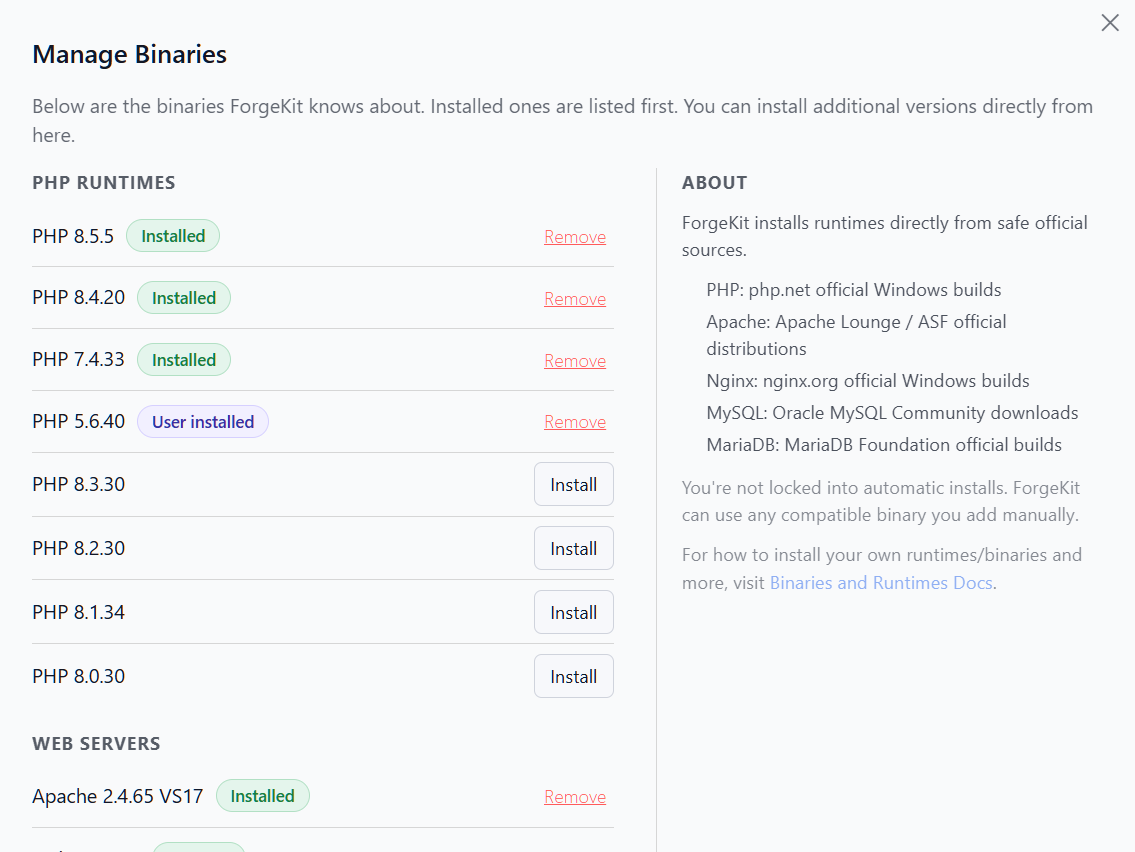
Use this unless you have a specific reason not to - it's the lowest-effort, most predictable option, and it's what ForgeKit's own auto-update and version checks are built around.
User installed
Badge: User installed
A binary you extracted into /bin by hand, with no catalog entry (official or custom) describing it at all. ForgeKit detects it via Reload Binaries and lets you use it, but it doesn't know where it came from or how to reinstall it if you delete it.
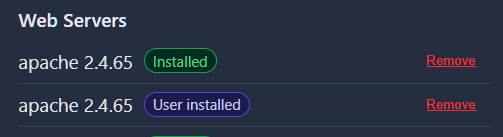

Use this for a one-off: a custom-compiled build, a version ForgeKit doesn't offer yet, or something you're just testing. See Binaries and Runtimes for the steps.
Custom · local
Badge: Custom · local
A binary installed from your own custom-binaries.json file - a small JSON catalog you maintain yourself, sitting next to binaries.yaml in ForgeKit's root folder. Unlike a bare User installed binary, ForgeKit knows exactly which catalog entry it came from, so reinstalling or updating it is a normal one-click action instead of manually re-extracting a zip.
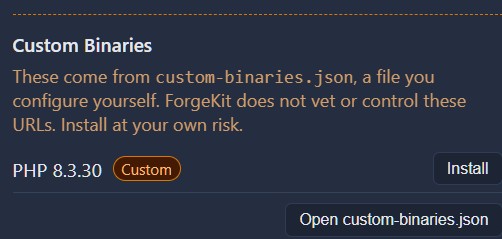
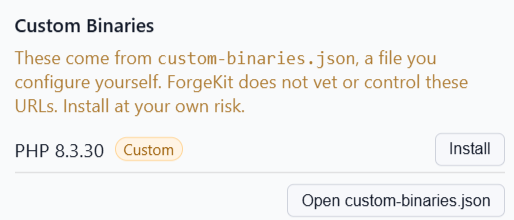
Use this when you regularly reinstall the same custom build(s), or want more than one custom binary tracked properly, but don't need to share the list with anyone else.
Custom · catalog
Badge: Custom · catalog
The same idea as Custom · local, except the catalog lives at a URL instead of a local file - ForgeKit fetches it live. Handy if you maintain a catalog for a team, or want the same custom binaries available across more than one machine without copying a file around.
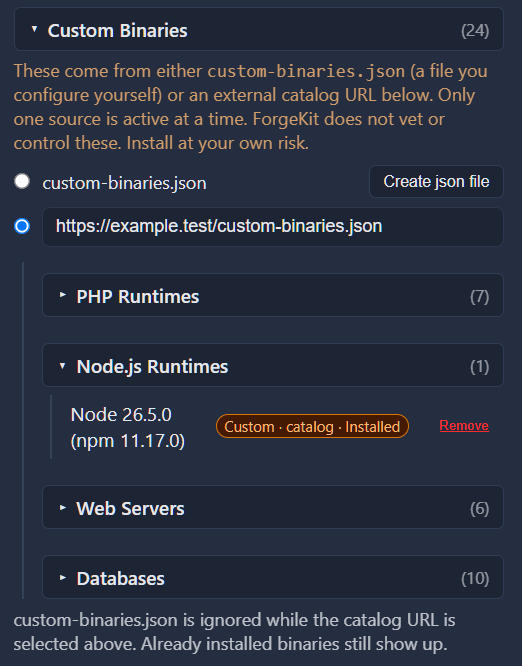
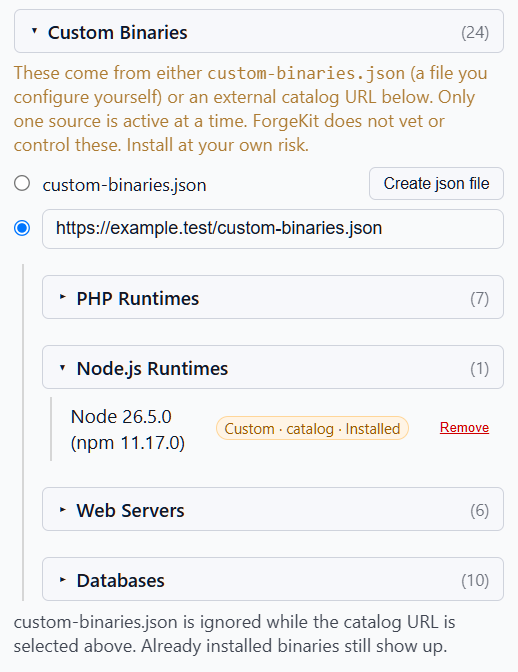
Use this when the same custom catalog needs to be shared or kept in sync somewhere central. See Binaries and Runtimes for the setup steps.
Only one custom source at a time
custom-binaries.json and a catalog URL are mutually exclusive - a radio switcher in Manage Binaries picks which one is active. Switching between them doesn't lose anything: whichever one you're not using stays remembered (the URL stays saved, the file stays on disk), so switching back doesn't require redoing setup.
Binaries you've already installed under one source keep working and keep showing correctly even after you switch away from the source they came from - the switcher only affects which catalog is used to browse and install new binaries.
Quick reference
| Type | Where it comes from | Badge |
|---|---|---|
| Official | ForgeKit's own verified catalog | Installed |
| User installed | Manually dropped into /bin, no catalog entry |
User installed |
| Custom · local | Your own custom-binaries.json file |
Custom · local |
| Custom · catalog | An external catalog URL you configure | Custom · catalog |
Hovering over any badge (or a binary's name) shows its install folder, and for Custom binaries, exactly which source it came from.
Continue to → Instances