Your First Site/Project
On the left, there is a sidebar with sites. There you can add a site or access the windows hosts file. Editing the windows hosts file does require admin privileges. ForgeKit will only request your admin access to edit the hosts file for you.
Adding your first site
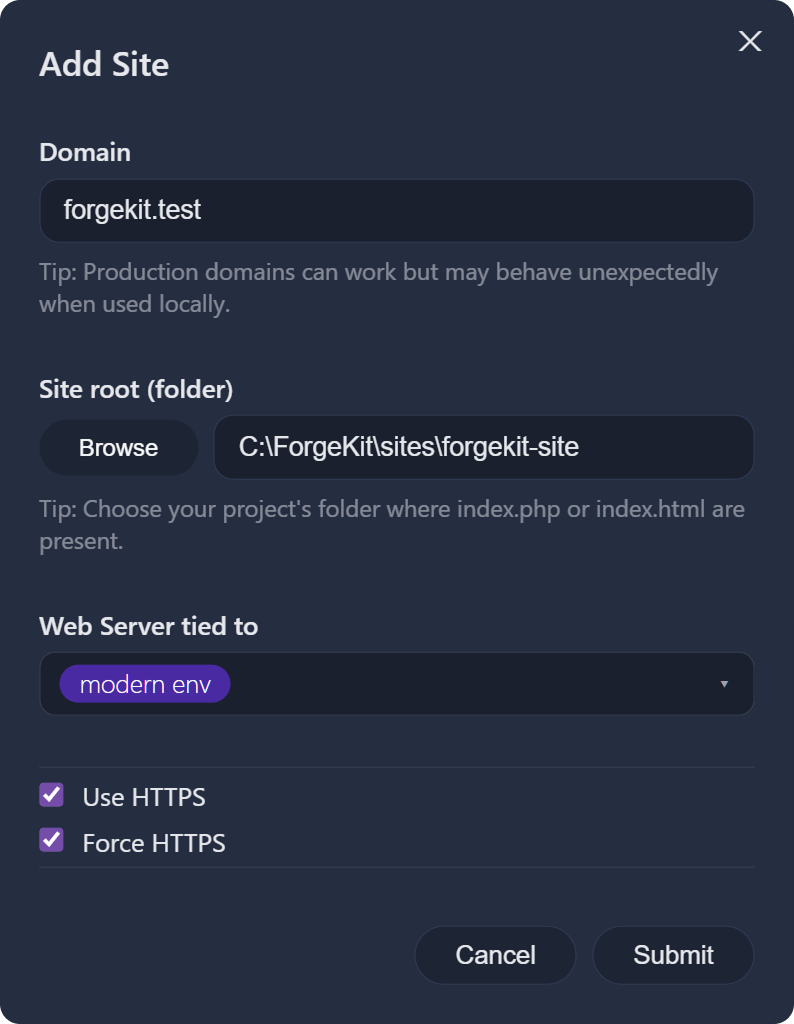
- Click the add site button on the sites sidebar
- Specify the domain you want to use for it.
- Select the folder location from your machine. You can use any folder where your project already resides or move it into
<ForgeKit>/sites/<yoursite>. If ForgeKit detects no files in the folder of your choosing, it will create an index.php file for testing. - Select from the dropdown, the web-server you wish to serve your site. If unset, the site will be inaccessible.
- Click Submit. On first submit only, Windows will ask for your permission to make changes to your machine. This is because the windows hosts file can only be edited by an admin user.
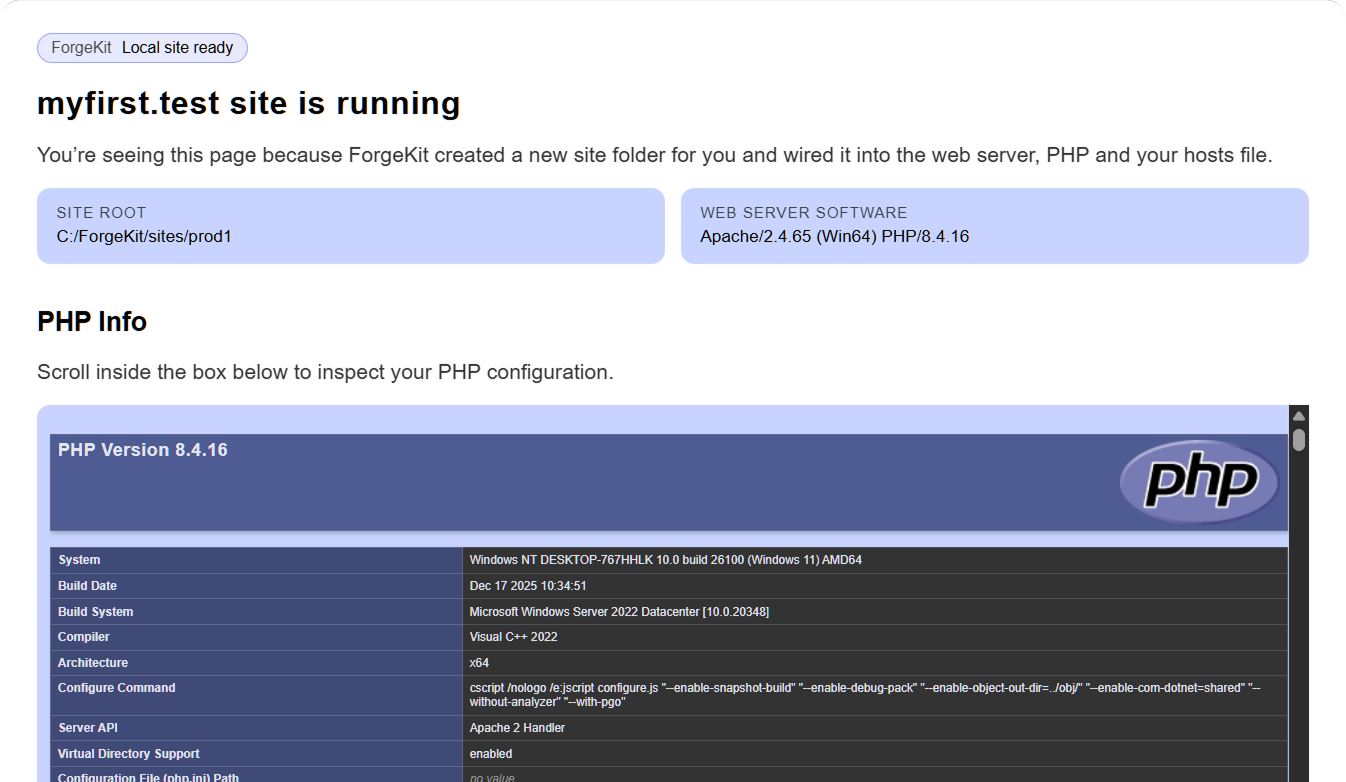
Within seconds, your site will be running and accessible in the browser.
What ForgeKit Does For You
During site setup, ForgeKit will:
- Add the domain you chose to the windows hosts file
- Setup the folder and index.php for you if the project is new.
- Add the site to the selected web-server's configuration vhosts.
Verify It Works and Troubleshooting
Once created:
- You should be able to visit your site at the domain of your choosing. The default index.php file will show which versions it's running on and have a phpInfo() there for you.
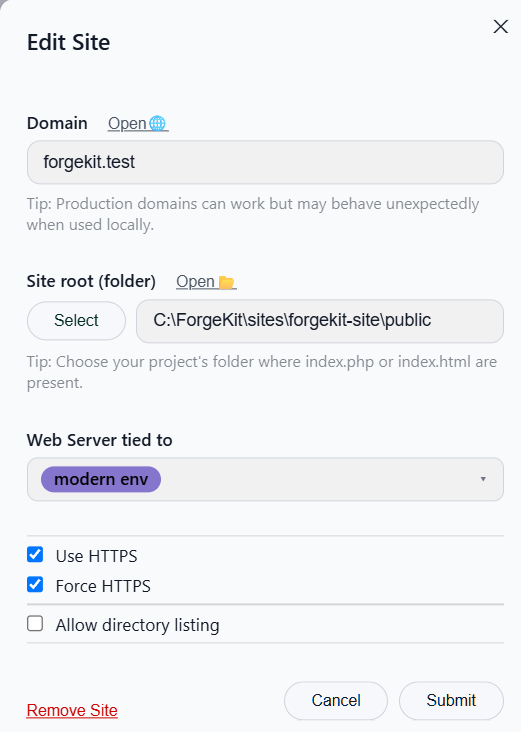
- You should be able to click on the site on the sidebar to open it's edit overlay.
- If your site is a WordPress or Laravel installation, or similar, you will need to point the site's root folder to the public folder with something like
laravel-app\public - If your domain of choice is something like
domainsite.com, your browser of choice might already try to serve an existing live site on that domain, or try to force https. It can still work, but if not,.testor similar should fix the issue. - If
localhostor your site domain are still not working, make sure port 80 is free, or you have switched off other hosting services you might have had setup already likeXAMPP
Continue to → Add Database
See also → How ForgeKit Works · Vhosts and Routing · Site missing from vhosts.conf?