Updating ForgeKit
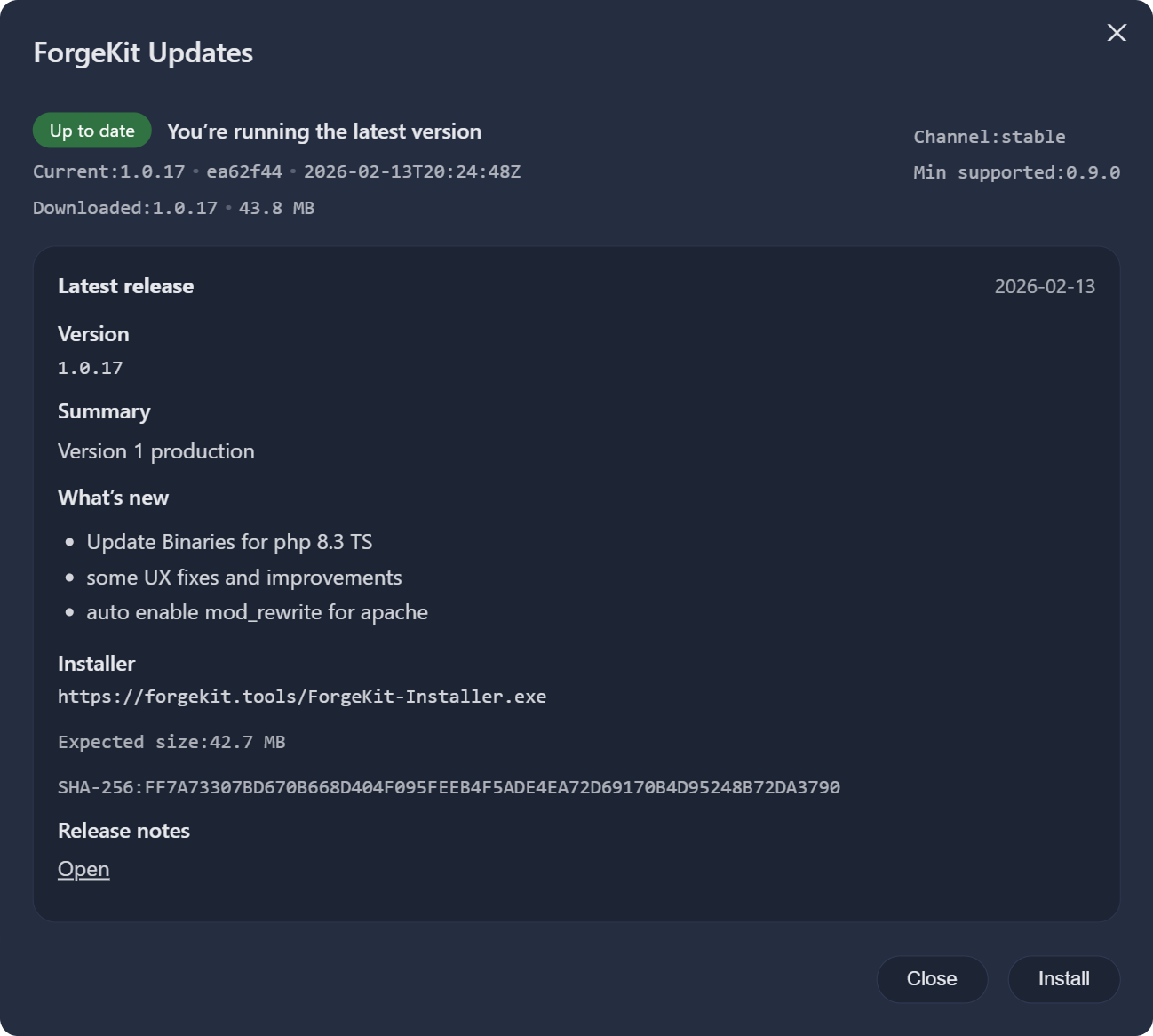
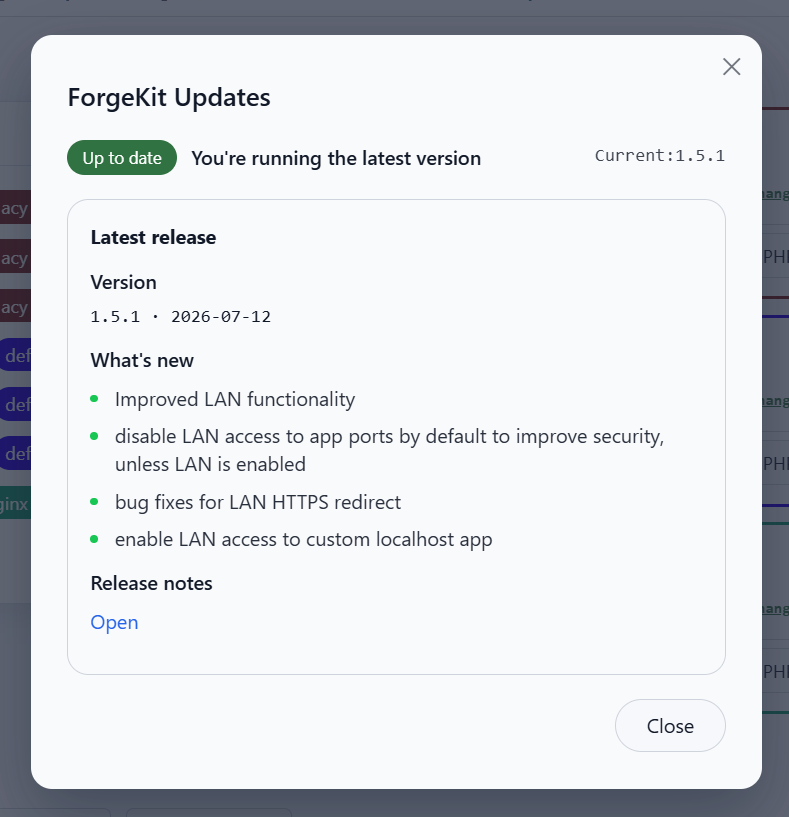
Updading ForgeKit is straight forward.
- You click on the UPDATE button in the app's top bar.
- ForgeKit will check for updates. If any are available, ForgeKit will show you the newest version available.
- You click on the download button which initiates the download process. This download happens in the background.
- Once the download is done, ForgeKit will do some integrity and security checks on the file. If all is good, The Install button will become available.
- Click on the Install button which will close ForgeKit alongside with all it's child processes, apache, nginx etc.
- The ForgeKit installer will show up and auto set itself to the ForgeKit installation Folder. Just follow the process and you should be done.
This page covers updating the ForgeKit application.
Update basics
ForgeKit is designed to be portable.
That means updates will not destroy your:
- sites
- instances
- configuration
- logs
The update process will update the ForgeKit base files and check for file and folder integrity. It will not touch your data or your projects.
If something breaks after updating
Start with:
- Check the logs (Instance error logs)
- Check ports (80/443 conflicts)
- Restart the affected Instance
If needed:
- Rebuild the affected Instance configuration
- Reinstall a specific binary version
And don't forget you can always get in touch. We'll happily help you out with anything.
Done → go back to Architecture