PHPMyAdmin
PHPMyAdmin is included to manage MySQL and MariaDB databases visually.
It allows you to:
- Create and delete databases
- Run SQL queries
- Import/export dumps
- Manage tables
- Manage users
Accessing PHPMyAdmin
- Make sure your Database Instance is running.
- Open PHPMyAdmin from the button next to the Database Server Instance.


The phpMyAdmin panel
Opening PHPMyAdmin brings up a panel with everything related to the phpMyAdmin runtime in one place, not just the login screen.
- Open phpMyAdmin: opens phpMyAdmin for the selected database in your browser.
- Runtime status: shows whether the bundled PHP server behind phpMyAdmin is running, on which port, and lets you start, stop, or restart it.
- phpMyAdmin runtime config and logs: direct links to
php.ini,config.inc.php, the runtime log, and the runtime error log, opened with your preferred logs/config editor from Preferences instead of whatever your system would normally open them with. - Database server config and log: direct links to the connected database's own
my.iniandmysql-error.log— these belong to the MySQL/MariaDB server itself, not to phpMyAdmin's runtime (see the section below). - Large imports folder: a folder path you can drop large dump files into, covered below.
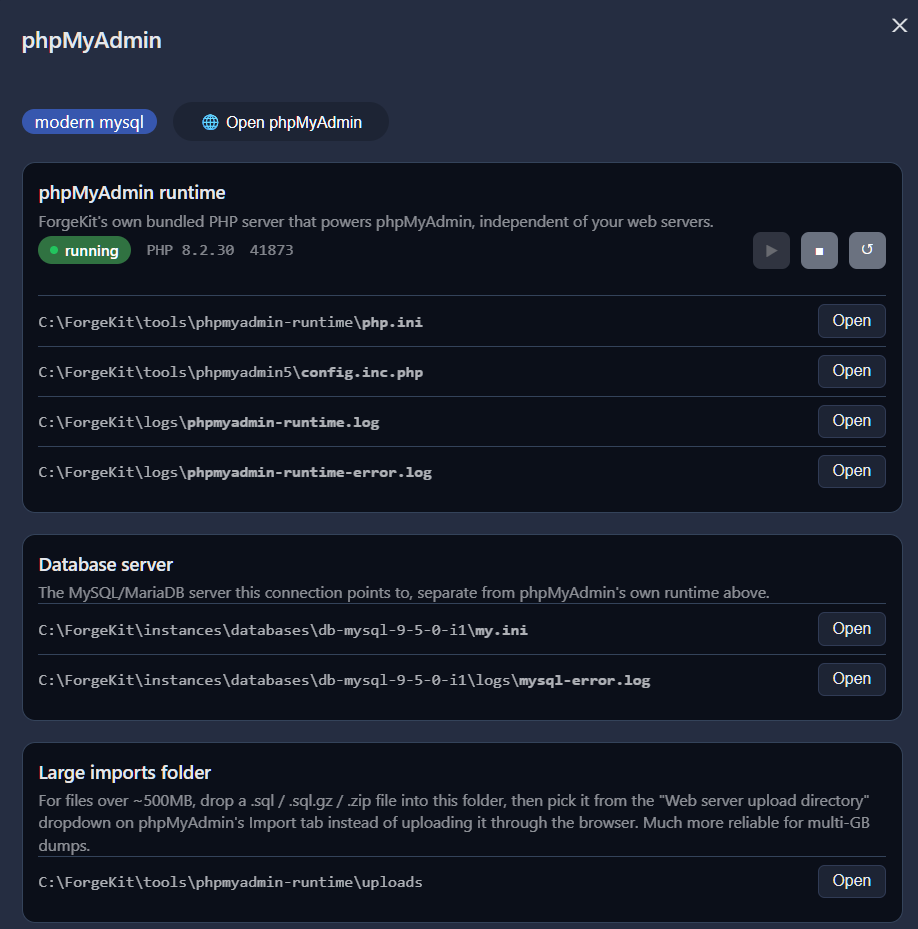
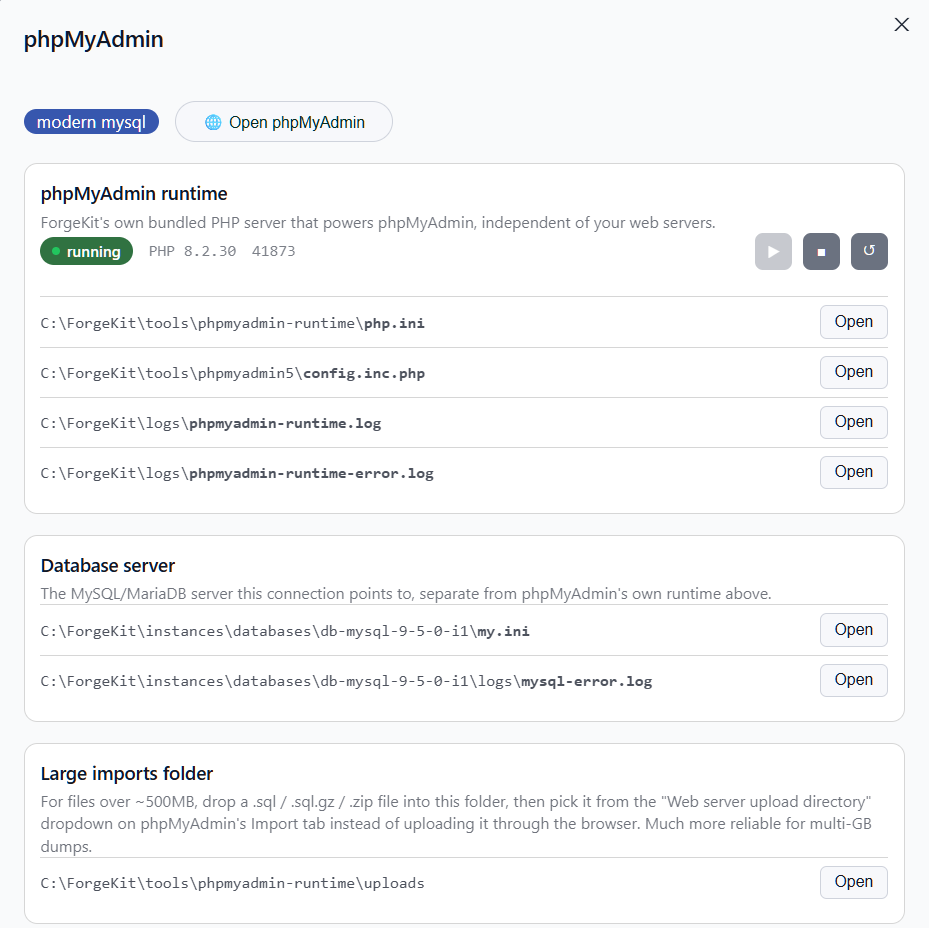
If you edit php.ini, use the Restart button in the panel afterward. php.ini is only read when the runtime process starts, so an edit alone has no effect until it restarts. config.inc.php takes effect immediately on your next request, no restart needed.
phpMyAdmin runtime vs. the database server
The phpMyAdmin panel shows two separate sets of config/logs, and it's easy to check the wrong one:
- phpMyAdmin runtime (
php.ini,config.inc.php, and the two runtime logs): this is ForgeKit's own bundled PHP server that serves the phpMyAdmin UI itself. Check these if phpMyAdmin's web page won't load, looks broken, or the runtime won't start. - Database server (
my.ini,mysql-error.log): this is the actual MySQL/MariaDB server phpMyAdmin is connecting to for the selected database. Check these if phpMyAdmin loads fine but you can't connect, queries fail, or the database itself won't start.
Since both a database's my.ini/error log and its phpMyAdmin panel now show the same log, you don't need to remember which page has it — see Logs and Config Files and Where are logs stored? for the full reference.
Importing large databases
Old dumps and multi-gigabyte databases used to hit PHP's default execution time limit during import, which showed up as a "Maximum execution time exceeded" error partway through. phpMyAdmin now runs with no execution time limit, so imports are free to take as long as they need.
For anything over a few hundred megabytes, skip the browser upload and use the large imports folder instead:
- Open the phpMyAdmin panel and note the folder path shown under Large imports folder.
- Drop your
.sql,.sql.gz, or.zipfile into that folder. - In phpMyAdmin's Import tab, pick your file from the "Web server upload directory" dropdown instead of browsing for it.
This skips uploading the file through your browser entirely, which is both faster to start and far more reliable for very large files.
Database credentials
You will be asked to login in order to access the database. By default we provide 2 users.
username: root
password: (none)

username: forgekit
password: forgekit
How it works
PhpMyAdmin is bundled with ForgeKit in /tools/phpMyAdmin5 and /tools/phpmyadmin-runtime. The runtime is a standalone and independent version of PHP with modified php.ini so it works with everything you need to do via phpMyAdmin.
It only runs if you need it though. If you never click on the phpMyAdmin button, that php-server never runs.
Security note
PHPMyAdmin runs locally inside your ForgeKit environment.
It is not exposed publicly unless you deliberately expose your local server.