Add a Database
ForgeKit supports MySQL and MariaDB. ForgeKit is very lightweight so it does not come with a database binary, however setting one up should take just minutes.
Install a Database Server
-
Underneath the Sites sidebar is a list of buttons. Click on Manage Binaries.
-
Scroll down the list of binaries and install the Mysql or MariaDB version you want. Any one of them is fine. Mysql 8.4 is very popular.
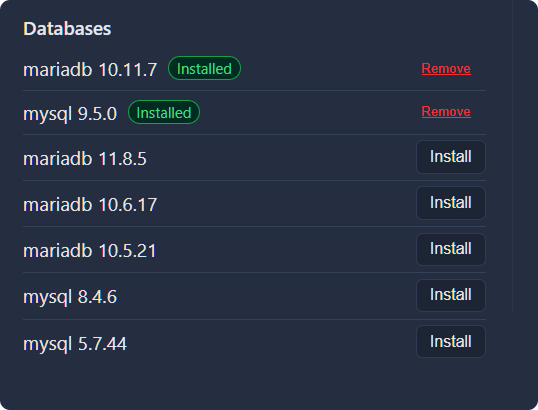
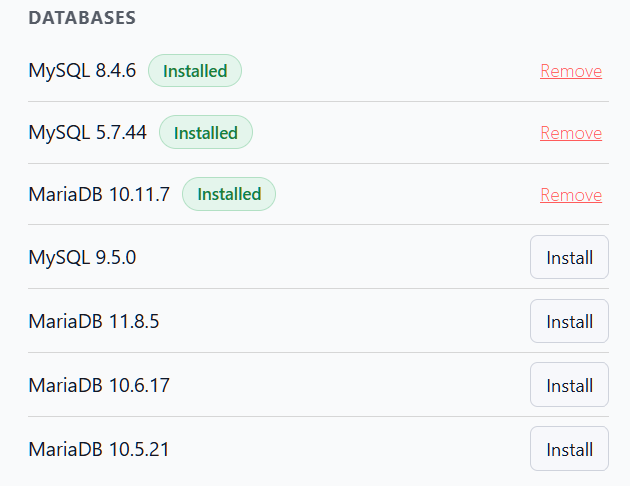
-
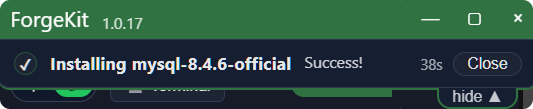
The installation takes as long as it's needed to download the binary from the official source. Should not be more than a minute though. A Job dropdown should show up at the top showing the download process. Downloading happens in the background.
-
After It's been fully downloaded, go to the Database Servers tab towards the top of the app window.
-
Click on add database sever.
-
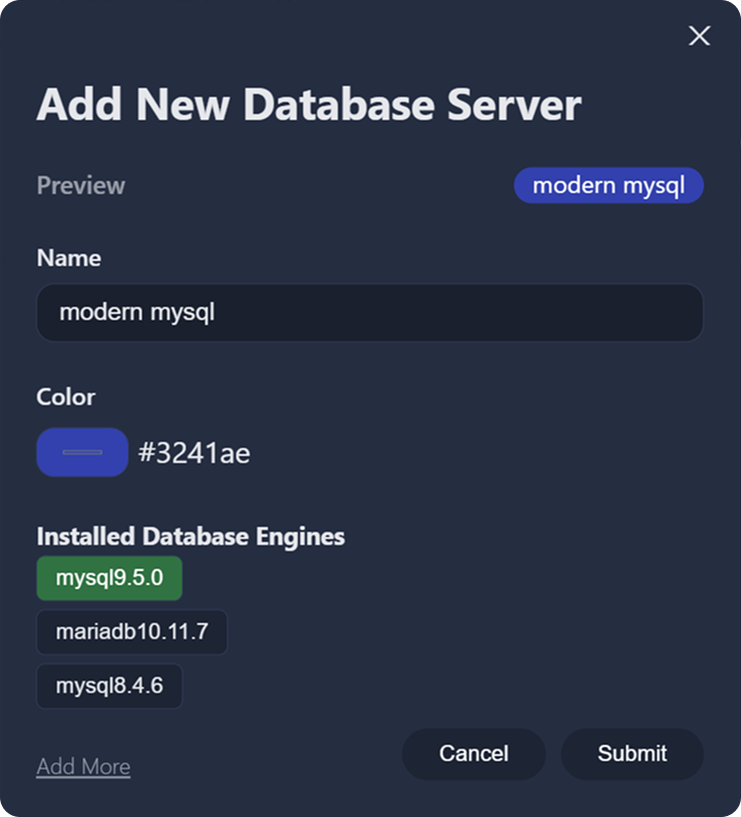
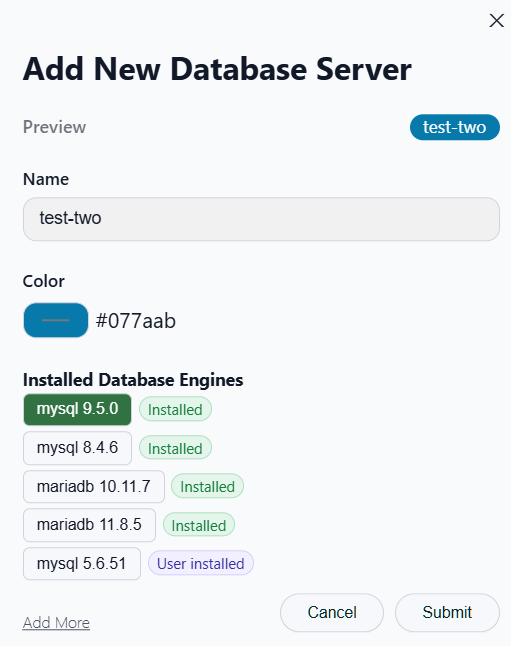
Select a label's name and colour for it and the database engine you just installed and click submit.
-
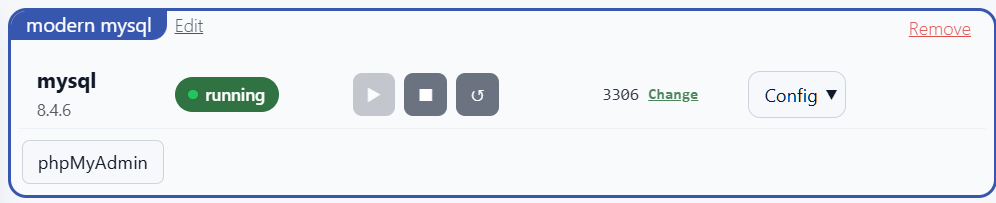
After a few seconds, the database server should be up and running and accessible on port 3306 or similar.

How it works
-
The database engine runs on your local machine.
-
You can connect to it with any tool at 127.0.0.1:3306 (or whatever port you have it setup) with the typical user:
rootand no password or user:forgekitand passwordforgekit -
By default it will not have any database created but you can create any number of databases and run them inside this database server.
-
PHPMyAdmin can also be setup but it's not as widely dependable as something like Table Plus.
Connect from PHP
Example laravel connection:
DB_HOST=127.0.0.1
DB_PORT=3306
DB_DATABASE=mylaraveldb
DB_USERNAME=forgekit
DB_PASSWORD=forgekit
Continue to → Next Steps