LAN Access
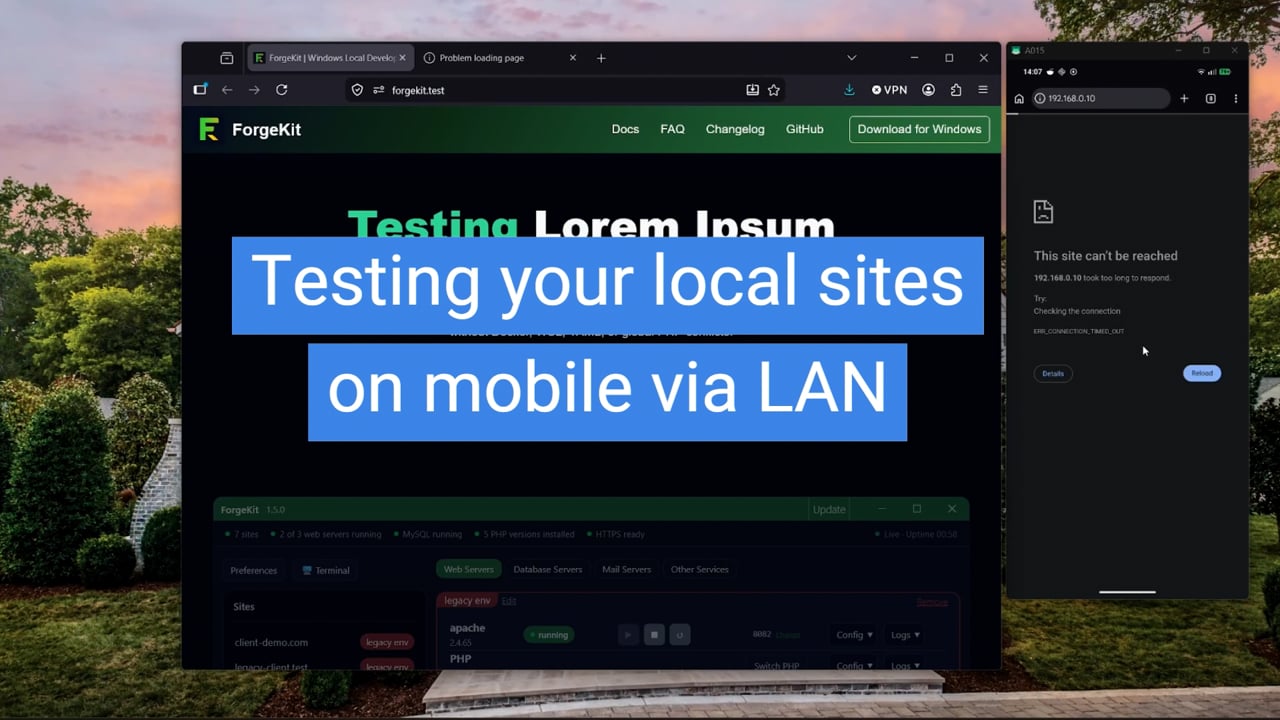
By default, ForgeKit only serves your sites to the machine it's running on. Nobody else on your network can reach myapp.test, and hitting your machine's IP address directly from another device does not work either.
LAN Access is an opt-in preference that changes this. When enabled, your sites and the ForgeKit dashboard become reachable from other devices on the same network, such as your phone, tablet, or a coworker's laptop.
This is useful for:
- testing a site on a real phone instead of a browser device emulator
- showing a work-in-progress site to someone else in the room
- checking responsive layouts on multiple real devices at once
- quick QA on a tablet without deploying anywhere
How to enable it
Open in ForgeKit.
In the LAN access section, enable Allow access from other devices on this network.
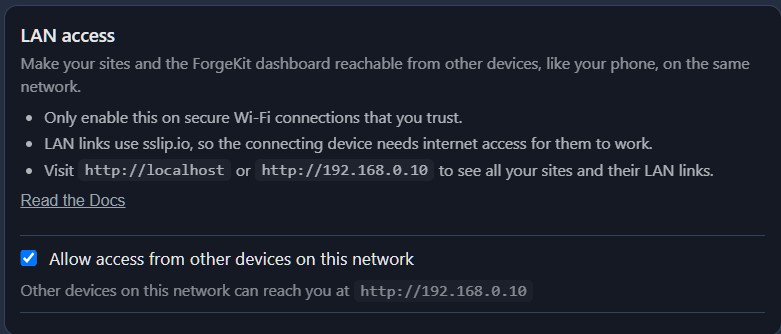
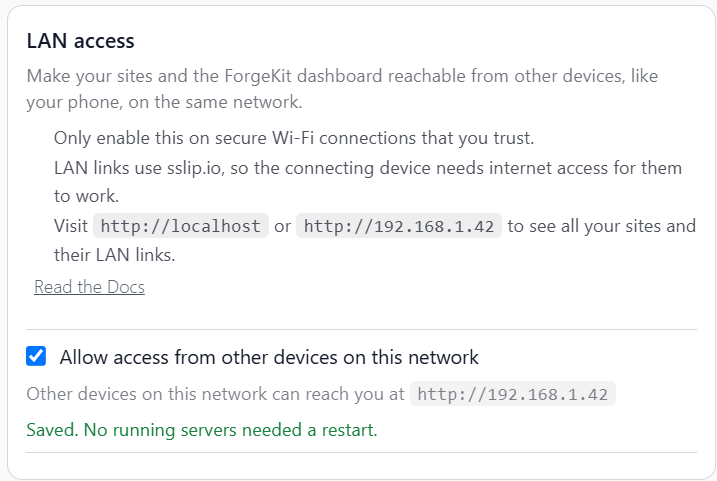
That's it. No per-site setup is required. Every site you already have (and every site you add afterward) automatically gets a LAN link.
The checkbox shows a small spinner while it applies, and then tells you what happened, for example:
Saved. Restarted 4 of 4 running servers.
Any web server instance that was already running gets restarted automatically so the change takes effect immediately. Instances that were stopped stay stopped, and pick up the new setting whenever they're next started.
Only enable this on networks you trust
Turning LAN access on makes your sites reachable to anyone else on the same network, not just your own devices. Only enable it on a secure Wi-Fi connection you trust, such as your home or office network.
Avoid enabling it on shared or public networks (coffee shops, coworking spaces, hotel Wi-Fi, etc.) unless you're comfortable with other people on that network being able to open your local sites.
Turning it back off closes access immediately, it restarts any running web servers so the change is not left half-applied.
How it works
The LAN link uses sslip.io
Each site gets an automatically generated link that looks like this:
http://myapp.192-168-1-10.sslip.io/
sslip.io is a public DNS service that resolves any hostname containing an IP address to that IP address. myapp.192-168-1-10.sslip.io always resolves to 192.168.1.10, no matter what myapp is. This lets ForgeKit give every site its own distinct, shareable hostname without needing you to edit a hosts file on your phone, or set up your own DNS server.
This means the device connecting to the link needs internet access for the hostname to resolve. Being on the same Wi-Fi as your ForgeKit machine is not enough by itself if that Wi-Fi network itself has no internet connection. In practice, this is rarely an issue since most Wi-Fi networks are also connected to the internet.
The link goes through the ForgeKit router, just like your .test domains
When a request for myapp.192-168-1-10.sslip.io arrives, it's handled by the same ForgeKit router that already handles myapp.test on port 80. The router recognises the sslip hostname, matches it to the right site, and proxies the request to the correct Apache/Nginx instance:
Phone browser
  ↓
http://myapp.192-168-1-10.sslip.io/
  ↓
ForgeKit router on port 80 (now also listening on your LAN IP)
  ↓
The web server instance running myapp.test
  ↓
myapp.test's own document root
No new ports are opened per site, and nothing needs to be added to Windows Firewall for extra ports. There's one thing to be aware of on the firewall side though, see the Firewall section below.
It's plain HTTP, on purpose
LAN links are always http://, even if the site itself has HTTPS/Force HTTPS enabled for its .test domain. This is deliberate: setting up trusted HTTPS across multiple devices on a LAN is significantly more involved (it would require installing ForgeKit's local certificate authority on every device that connects), and isn't worth the friction for local testing.
Your .test domain keeps behaving exactly as configured. Only the LAN link is forced to HTTP.
Closing LAN access
When you turn the checkbox off, ForgeKit:
- Rewrites every web server instance's configuration back to loopback-only (
127.0.0.1), so it can no longer be reached from other devices, including by going directly tohttp://<your IP>:<port>. - Regenerates every site's vhost/server block to drop the sslip alias.
- Restarts any web server instance that was running, so the change applies immediately rather than waiting for a manual restart.
If you've ever noticed that visiting your machine's IP address with a port number (e.g. http://192.168.1.10:8083) happened to load a site, that's exactly the kind of accidental exposure LAN access replaces with an explicit, reversible, opt-in toggle. When LAN access is off, that kind of direct port access is closed.
Finding your sites and their LAN links
With LAN access enabled, visit either of these from your ForgeKit machine (or check Preferences, which also shows your detected LAN IP):
http://localhost
http://<your IP address>
Both show the same ForgeKit dashboard, listing every site along with its normal domain and, when available, its LAN link. From another device on the network, only the second one works, since localhost on that device refers to itself, not your ForgeKit machine.
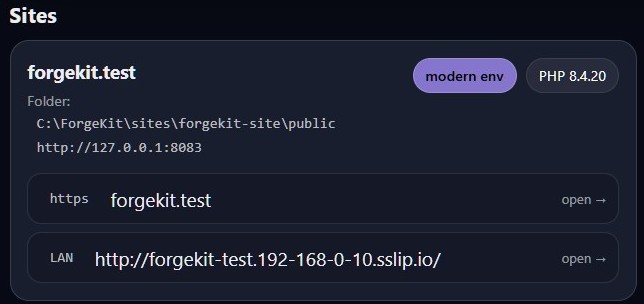
Each site card shows its regular domain and, right below it, its LAN link, ready to click or copy to another device.
The same data is also available as JSON, which is useful if you're building a custom localhost app:
http://<your IP address>/__forgekit/index.json
Each site object includes a lanURL field when LAN access is enabled and a link could be generated:
{
  "id": "site-abc123",
  "name": "myapp.test",
  "domains": ["myapp.test"],
  "primaryDomain": "myapp.test",
  "url": "http://myapp.test/",
  "lanURL": "http://myapp.192-168-1-10.sslip.io/"
}
Firewall
Windows Firewall may prompt you to allow forgekit-agent.exe (or block it silently, depending on your settings) the first time something on your network tries to reach it. ForgeKit does not attempt to modify Windows Firewall rules automatically. If a device on your network can't reach a LAN link, check that Windows Firewall is allowing inbound connections to ForgeKit on your network's profile (Private networks are usually allowed by default; Public networks are usually blocked).
Troubleshooting
A LAN link loads on my computer but redirects to the .test domain on my phone
This usually happens with CMS platforms like WordPress, which store their own base URL (siteurl/home in WordPress's case) and redirect any request that doesn't match it back to that stored domain. Since your phone can't resolve myapp.test, the redirect dead-ends.
The fix is to make the app trust whatever hostname it was actually reached through, instead of a fixed one. For WordPress, add this to wp-config.php:
$host = isset($_SERVER['HTTP_HOST']) ? $_SERVER['HTTP_HOST'] : 'myapp.test';
define('WP_HOME', 'http://' . $host);
define('WP_SITEURL', 'http://' . $host);
This keeps myapp.test working exactly as before, while also working correctly for the LAN link (and any other hostname the site is reached through).
The LAN link doesn't load at all from my phone
Check, in order:
- Your phone and your ForgeKit machine are on the same Wi-Fi network.
- Your phone has internet access (sslip.io needs to resolve).
- LAN access is enabled in Preferences, and the toggle reported a successful save.
- The web server instance running the site is actually running.
- Windows Firewall isn't blocking
forgekit-agent.exe(see the Firewall section above).
The dashboard shows no detected IP
ForgeKit looks for a private IPv4 address (192.168.x.x, 10.x.x.x, 172.16.x.x–172.31.x.x) on an active, non-virtual network interface. If your machine only has virtual adapters active (VPN, WSL, Hyper-V, etc.) or no network connection at all, no IP can be detected. Connect to your Wi-Fi/Ethernet network and try again.
I turned LAN access off, but a site is still reachable at an IP:port
This should not happen for any web server instance that was running when you flipped the toggle, since ForgeKit restarts it automatically. If the toggle reported that a restart failed for a specific instance, restart it manually from the Web Servers page to apply the change.
Summary
LAN access turns your local ForgeKit setup into something you can hand to another device on the same network, with one checkbox.
Off  → your machine only, exactly like before
On   → your sites and dashboard reachable from your phone, tablet, or any device on the same Wi-Fi
Only turn it on for networks you trust.