Custom Localhost App or Page
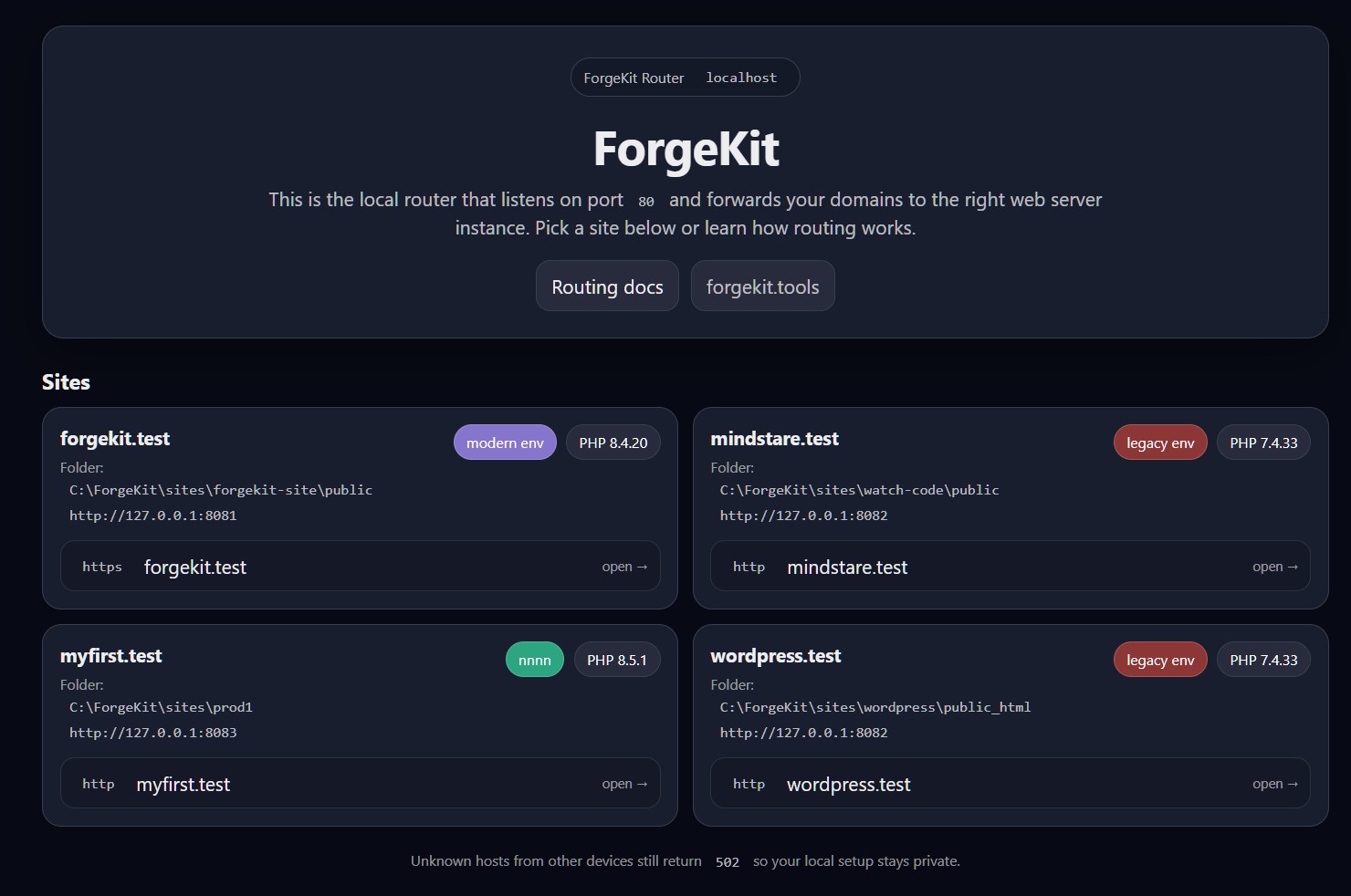
ForgeKit normally uses http://localhost as a built-in router dashboard. It shows your configured sites and explains that ForgeKit is listening on port 80 and forwarding local domains to the correct web server instance.
It looks like this by default:
The Custom Localhost App feature lets you replace that default page with your own local dashboard or tool.
You can point http://localhost at a folder of your choice, run it through one of your ForgeKit web servers, and build your own index.php or index.html experience.
This makes localhost useful for project dashboards, quick launchers, internal tools, folder indexes, iframe previews, and anything else you want to build locally.
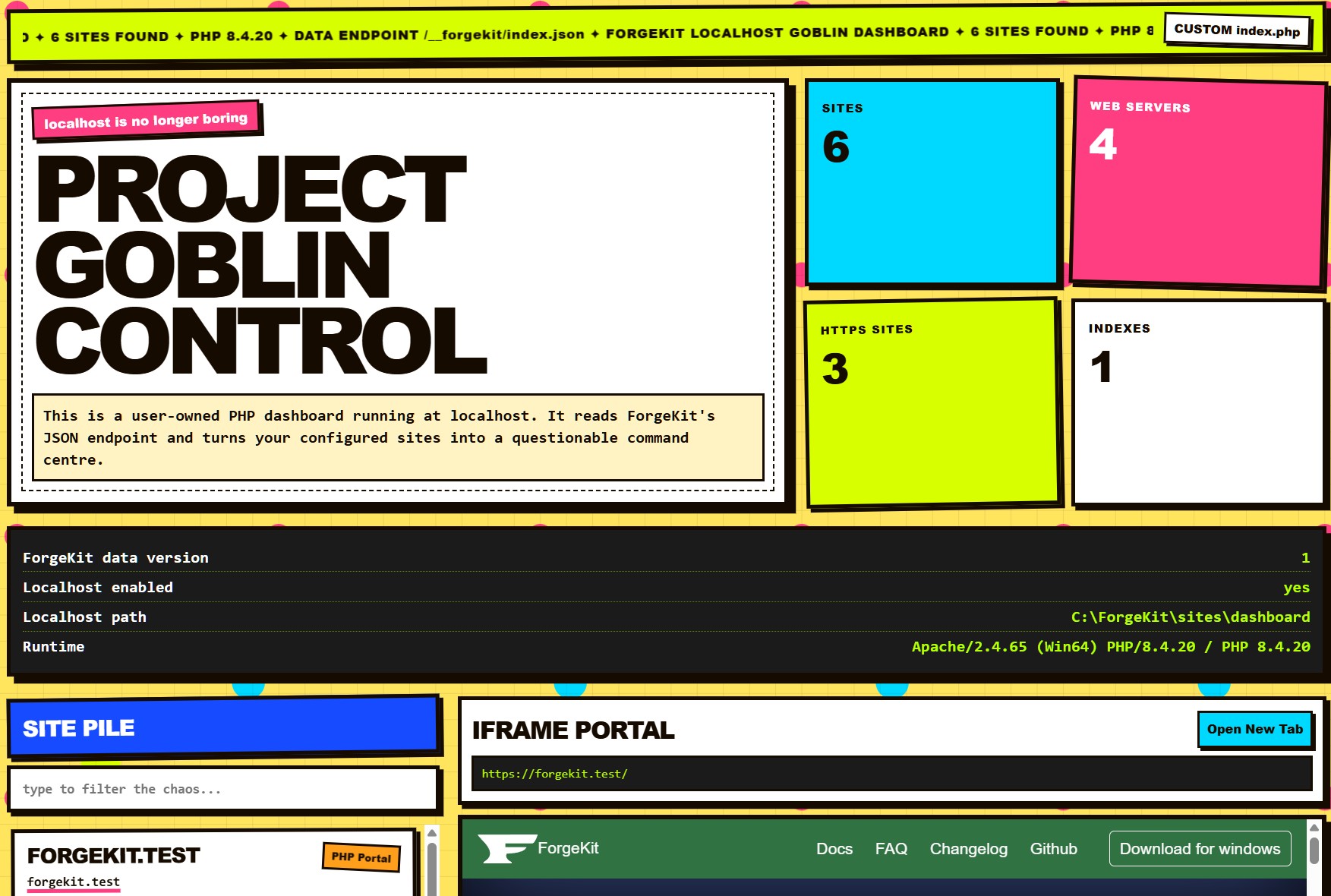
This is how yours could look:
What this is useful for
A custom localhost app can be used as a personal local development control panel.
For example, you could build a dashboard that lets you:
- list all your ForgeKit sites
- preview projects in an iframe
- open sites in the browser
- open project folders
- open projects in VS Code
- group projects by client or stack
- show which web server/PHP version each site uses
- create your own links to tools like phpMyAdmin, Adminer, Mailpit, docs, logs, or scripts
You can make it as simple or as custom as you want.
How to enable it
Open in ForgeKit.
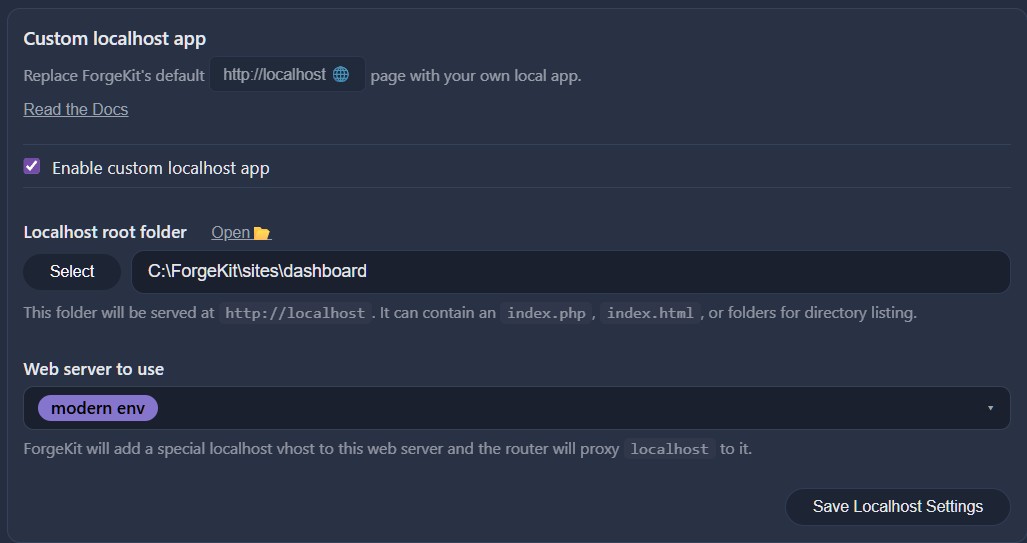
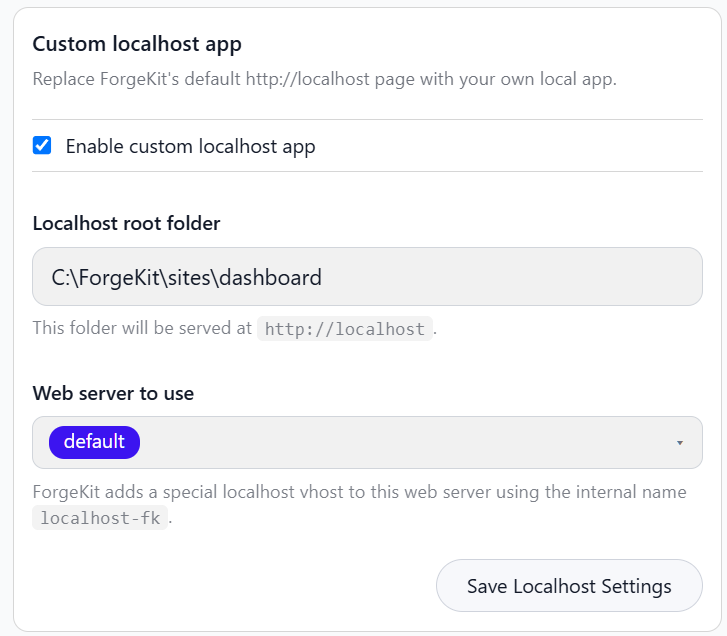
In the Custom localhost app section:
- Enable Custom localhost app
- Select the folder you want to serve at
http://localhost - Select the ForgeKit web server that should run it
- Save the localhost settings
After saving, open:
http://localhost
ForgeKit will serve your selected folder instead of the default built-in localhost page.
Recommended folder structure
You can use any folder, but a simple structure could look like this:
C:\ForgeKit\sites\dashboard
│
├── index.php
├── assets
│   ├── app.css
│   └── app.js
│
├── tools
│   └── phpinfo.php
│
└── notes
    └── index.html
If your folder contains an index.php, ForgeKit will run it through the selected web server/PHP setup.
If your folder contains an index.html, it can be used as a static dashboard.
If the folder has no index file, directory listing is enabled by default for the custom localhost app, so you can browse the folder contents.
How it works
ForgeKit still listens on port 80.
When you visit:
http://localhost
the request first reaches the ForgeKit router.
If the custom localhost app is disabled, ForgeKit shows the built-in localhost page.
If the custom localhost app is enabled, ForgeKit proxies the request to the web server selected in Preferences.
The selected web server receives a special internal virtual host for the custom localhost app.
Conceptually:
Browser
  ↓
http://localhost
  ↓
ForgeKit router on port 80
  ↓
Selected Apache/Nginx instance
  ↓
Your selected localhost folder
  ↓
index.php / index.html / directory listing
You do not need to type the web server port manually. The router handles that.
Why ForgeKit uses an internal host name
The browser-facing URL stays:
http://localhost
Internally, ForgeKit proxies the request to the selected web server using a private host name:
localhost-fk
This avoids conflicts with default Apache or Nginx localhost virtual hosts.
Older versions of ForgeKit used:
fk-local
ForgeKit still accepts fk-local as a legacy alias, but new/generated custom localhost vhosts use localhost-fk.
So the actual flow is closer to this:
Browser requests:
Host: localhost

ForgeKit proxies internally as:
Host: localhost-fk

Apache/Nginx matches:
ServerName localhost-fk
This means your custom localhost app works reliably even if Apache or Nginx already has a default localhost block.
Note for apps with redirect or environment rules
Inside PHP, Apache, Nginx, or .htaccess, the internal request may appear as:
localhost-fk

rather than:

localhost
If your app detects local development by checking the host name, make sure it treats localhost-fk as local.
For example, if your .htaccess rules currently check for:
localhost|127\.0\.0\.1
localhost-fk will usually match loose localhost checks. If your rules are stricter, you may need to explicitly include localhost-fk.
ForgeKit still accepts the old fk-local internal name as a legacy alias.
Apache behaviour
For Apache, ForgeKit generates a special virtual host for the selected localhost folder.
Example:
# --- ForgeKit custom localhost app ---
<VirtualHost *:8083>
    ServerName localhost-fk
    ServerAlias fk-local
    ServerAlias 127.0.0.1

    DocumentRoot "C:/ForgeKit/sites/dashboard"

    <Directory "C:/ForgeKit/sites/dashboard">
        Options FollowSymLinks Indexes
        AllowOverride All
        Require all granted
    </Directory>

    DirectoryIndex index.php index.html index.htm

    ErrorLog "C:/ForgeKit/logs/sites/localhost/error.log"
    CustomLog "C:/ForgeKit/logs/sites/localhost/access.log" common
</VirtualHost>
Directory listing is enabled by default for this special localhost app.
Nginx behaviour
For Nginx, ForgeKit generates a special server block for the selected localhost folder.
Example:
# --- ForgeKit custom localhost app ---
server {
    listen 8083;
    server_name localhost-fk fk-local;

    root "C:/ForgeKit/sites/dashboard";
    index index.php index.html index.htm;

    access_log "C:/ForgeKit/logs/sites/localhost/access.log";
    error_log "C:/ForgeKit/logs/sites/localhost/error.log";

    location / {
        autoindex on;
        try_files $uri $uri/ /index.php?$query_string;
    }

    location ~ \.php$ {
        try_files $uri =404;
        fastcgi_pass   127.0.0.1:9083;
        fastcgi_index  index.php;
        include        fastcgi.conf;
        fastcgi_param  SCRIPT_FILENAME $document_root$fastcgi_script_name;
    }
}
Directory listing is enabled by default for this special localhost app.
Accessing ForgeKit data from your custom app
ForgeKit provides a local JSON endpoint that your custom localhost app can use:
http://localhost/__forgekit/index.json
This endpoint is handled directly by the ForgeKit router before the request reaches your custom Apache/Nginx app.
That means your own Laravel, WordPress, PHP, or static app does not need to define a route for it.
The path below is reserved by ForgeKit:
/__forgekit/*
Example JSON response
The endpoint returns data similar to this:
{
  "version": "1",
  "localhost": {
    "enabled": true,
    "path": "C:\\ForgeKit\\sites\\dashboard",
    "webServerID": "web-nginx-1-29-4",
    "url": "http://localhost/"
  },
  "sites": [
    {
      "id": "site-abc123",
      "name": "myfirst.test",
      "domains": ["myfirst.test"],
      "primaryDomain": "myfirst.test",
      "rootPath": "C:\\ForgeKit\\sites\\prod1",
      "webServerID": "web-nginx-1-29-4",
      "webServerLabel": "Nginx 1.29.4",
      "webServerType": "nginx",
      "webServerColor": "#164bff",
      "phpEnabled": true,
      "phpVersion": "8.3.29",
      "httpPort": 8083,
      "backendURL": "http://127.0.0.1:8083",
      "httpsEnabled": false,
      "forceHttps": false,
      "allowDirectoryListing": true,
      "url": "http://myfirst.test/"
    }
  ],
  "webServers": [
    {
      "id": "web-nginx-1-29-4",
      "name": "Nginx 1.29.4",
      "type": "nginx",
      "color": "#164bff",
      "httpPort": 8083,
      "phpEnabled": true,
      "phpVersion": "8.3.29",
      "sitesCount": 1
    }
  ]
}
The exact values depend on your local ForgeKit configuration.
Reading ForgeKit data with PHP
Inside your custom index.php, you can read ForgeKit data like this:
<?php

$json = @file_get_contents('http://localhost/__forgekit/index.json');
$data = json_decode($json ?: '{}', true);

$sites = $data['sites'] ?? [];

foreach ($sites as $site) {
    $name = $site['name'] ?: $site['primaryDomain'];
    $url = $site['url'];

    echo '<a href="' . htmlspecialchars($url, ENT_QUOTES, 'UTF-8') . '">';
    echo htmlspecialchars($name, ENT_QUOTES, 'UTF-8');
    echo '</a><br>';
}
This lets your dashboard automatically list your ForgeKit sites.
Reading ForgeKit data with JavaScript
You can also read the data from browser JavaScript:
async function loadForgeKitData() {
  const response = await fetch('/__forgekit/index.json')
  const forgekit = await response.json()

  console.log(forgekit.sites)
  console.log(forgekit.webServers)
}

loadForgeKitData()
Because the endpoint is on the same origin, you do not need CORS configuration.
Example custom dashboard idea
Your index.php could use the ForgeKit data endpoint to build a project launcher:
<?php

function h($value) {
    return htmlspecialchars((string) $value, ENT_QUOTES, 'UTF-8');
}

$json = @file_get_contents('http://localhost/__forgekit/index.json');
$data = json_decode($json ?: '{}', true);

$sites = $data['sites'] ?? [];

?>
<!doctype html>
<html lang="en">
<head>
    <meta charset="utf-8">
    <title>My ForgeKit Dashboard</title>
</head>
<body>
    <h1>My Local Projects</h1>

    <?php foreach ($sites as $site): ?>
        <article>
            <h2><?= h($site['name'] ?: $site['primaryDomain']) ?></h2>

            <p>
                <strong>Domain:</strong>
                <?= h($site['primaryDomain']) ?>
            </p>

            <p>
                <strong>Folder:</strong>
                <?= h($site['rootPath']) ?>
            </p>

            <p>
                <strong>Web server:</strong>
                <?= h($site['webServerLabel']) ?>
            </p>

            <?php if (!empty($site['phpVersion'])): ?>
                <p>
                    <strong>PHP:</strong>
                    <?= h($site['phpVersion']) ?>
                </p>
            <?php endif; ?>

            <p>
                <a href="<?= h($site['url']) ?>" target="_blank">
                    Open site
                </a>
            </p>
        </article>
    <?php endforeach; ?>
</body>
</html>
You can then style it however you like.
Previewing projects in iframes
A custom dashboard can preview projects using iframes:
<iframe src="http://myfirst.test/" style="width:100%;height:700px;"></iframe>
Or dynamically:
<iframe src="<?= htmlspecialchars($site['url'], ENT_QUOTES, 'UTF-8') ?>"></iframe>
This works for many local projects.
However, an iframe preview may fail if the target project sends frame-blocking headers such as:
X-Frame-Options: DENY
X-Frame-Options: SAMEORIGIN
Content-Security-Policy: frame-ancestors ...
If a project refuses to load in an iframe, open it in a new tab instead.
Opening projects in VS Code
A dashboard can use VS Code protocol links:
<?php

function vscode_url(string $path): string {
    $path = str_replace('\\', '/', $path);
    return 'vscode://file/' . str_replace('%2F', '/', rawurlencode($path));
}

?>

<a href="<?= htmlspecialchars(vscode_url($site['rootPath']), ENT_QUOTES, 'UTF-8') ?>">
    Open in VS Code
</a>
This requires VS Code to be installed and registered as a protocol handler.
Some browsers may ask for confirmation before opening VS Code.
Opening folders in Explorer
A dashboard can link to local folders using file:/// URLs:
<?php

function explorer_url(string $path): string {
    $path = str_replace('\\', '/', $path);

    if (preg_match('/^[A-Za-z]:\//', $path)) {
        return 'file:///' . str_replace('%2F', '/', rawurlencode($path));
    }

    return 'file://' . str_replace('%2F', '/', rawurlencode($path));
}

?>

<a href="<?= htmlspecialchars(explorer_url($site['rootPath']), ENT_QUOTES, 'UTF-8') ?>">
    Open folder
</a>
Browser behaviour varies. Some browsers may block file:/// links or require confirmation.
A future ForgeKit API may provide a more reliable way to open folders or editors from custom dashboards.
Localhost subfolders
You can also place tools or subprojects inside the selected localhost folder:
C:\ForgeKit\sites\dashboard
│
├── index.php
├── tools
│   └── phpinfo.php
└── experiments
    └── index.html
These would be available as:
http://localhost/tools/
http://localhost/experiments/
This is useful for small tools, static pages, scripts, and local utilities.
For full applications, using a normal ForgeKit .test domain is still usually better.
When to use .test domains instead
The custom localhost app is ideal for dashboards and tools.
For full applications, it is usually better to create a normal ForgeKit site with its own local domain, such as:
myproject.test
client-site.test
api.test
Many frameworks and CMSs expect to run from the root of their own domain.
For example:
http://myproject.test/
is usually safer than:
http://localhost/myproject/
This matters for apps that use:
- absolute URLs
- redirects
- cookies
- WordPress
siteurl/home - Laravel
APP_URL - framework routing
- asset paths
- authentication flows
A good pattern is:
http://localhost/        → your custom dashboard
http://project-a.test/   → actual project A
http://project-b.test/   → actual project B
Your dashboard can link to, preview, and organize your .test projects.
Security notes
The custom localhost app is intended for local development.
ForgeKit keeps unknown hosts private and does not expose your site list to other machines through random hostnames.
The ForgeKit data endpoint is only intended for local localhost use:
http://localhost/__forgekit/index.json
Do not build dashboards that expose sensitive data unnecessarily.
The data endpoint intentionally provides useful development metadata such as site names, folders, domains, web server labels, PHP versions, and local URLs. It should not include secrets, passwords, tokens, or private service credentials.
Troubleshooting
I still see the default ForgeKit localhost page
Check that:
- Custom localhost app is enabled in Preferences
- A folder is selected
- A web server is selected
- Settings were saved
- The selected web server is running
- ForgeKit has reloaded its config/router
I get 403 Forbidden
This usually means the web server matched the wrong virtual host or the folder has no index file and directory listing is not enabled.
ForgeKit's custom localhost vhost enables directory listing by default.
If this happens, check the selected web server's error log.
For Nginx, make sure the generated custom localhost block uses:
server_name localhost-fk fk-local;
For Apache, make sure the generated custom localhost block uses:
ServerName localhost-fk
ForgeKit uses localhost-fk internally to avoid conflicts with default localhost blocks.
My iframe preview does not load
The target site may be blocking iframes with security headers.
Open the site in a new tab instead, or remove/adjust frame-blocking headers for local development.
Common blocking headers include:
X-Frame-Options
Content-Security-Policy: frame-ancestors
VS Code links do not work
Check that VS Code is installed and registered as a protocol handler.
The link format is:
vscode://file/C:/path/to/project
Some browsers may ask for confirmation before opening VS Code.
Folder links do not work
Browsers often restrict file:/// links for security reasons.
This may work in some browsers and fail in others.
A future ForgeKit helper API could make this more reliable by opening folders through the ForgeKit desktop app instead of through the browser.
I get redirected to the wrong local site
This can happen if ForgeKit has been updated but the selected web server still has an older custom localhost vhost generated with only the previous internal name.
ForgeKit now uses:
localhost-fk
and still accepts the legacy alias:
fk-local
For Nginx, make sure the generated custom localhost block uses:
server_name localhost-fk fk-local;
For Apache, make sure the generated custom localhost block uses:
ServerName localhost-fk
ServerAlias fk-local 127.0.0.1
If the file still only shows fk-local, refresh the site's web server configuration by saving the related site or localhost preferences again, then restart/reload the selected web server.
Summary
The custom localhost app turns http://localhost into a user-controlled local tool.
It can be a simple static index.html, a dynamic PHP dashboard, a folder index, or a full local project launcher.
ForgeKit still handles the routing, web server integration, and project metadata.
You control the app.
localhost is yours.
See also → LAN Access